UPS Firmware Upgrade
Before upgrading the firmware, please be sure to read the following precautions to ensure the process is safe:
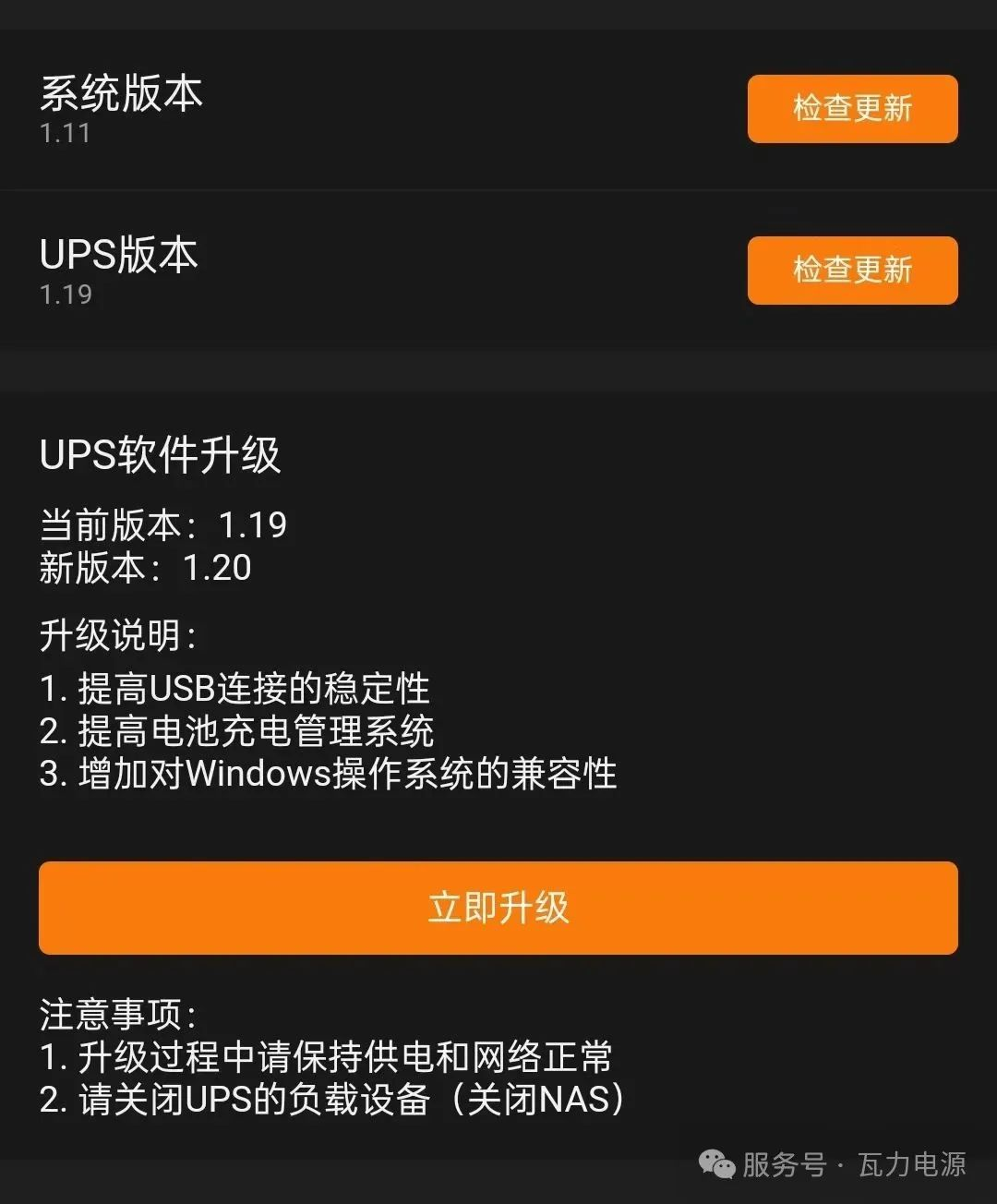
- Safety First: Please turn off any connected electrical equipment (such as NAS) before upgrading.
- Stable Environment: Please ensure that the UPS power supply is normal and the WiFi network signal is stable during the upgrade.
- Troubleshooting: If the upgrade fails, you can use a pin to lightly poke the Reset hole on the front panel. After the device restarts for 30 seconds, try upgrading again.
Currently, WalleCube Smart UPS (such as W150 series) support online OTA upgrade functions.
Operating Steps
- Enter Device Information: Open the “WalleCube” app and click Device Info on the home page.
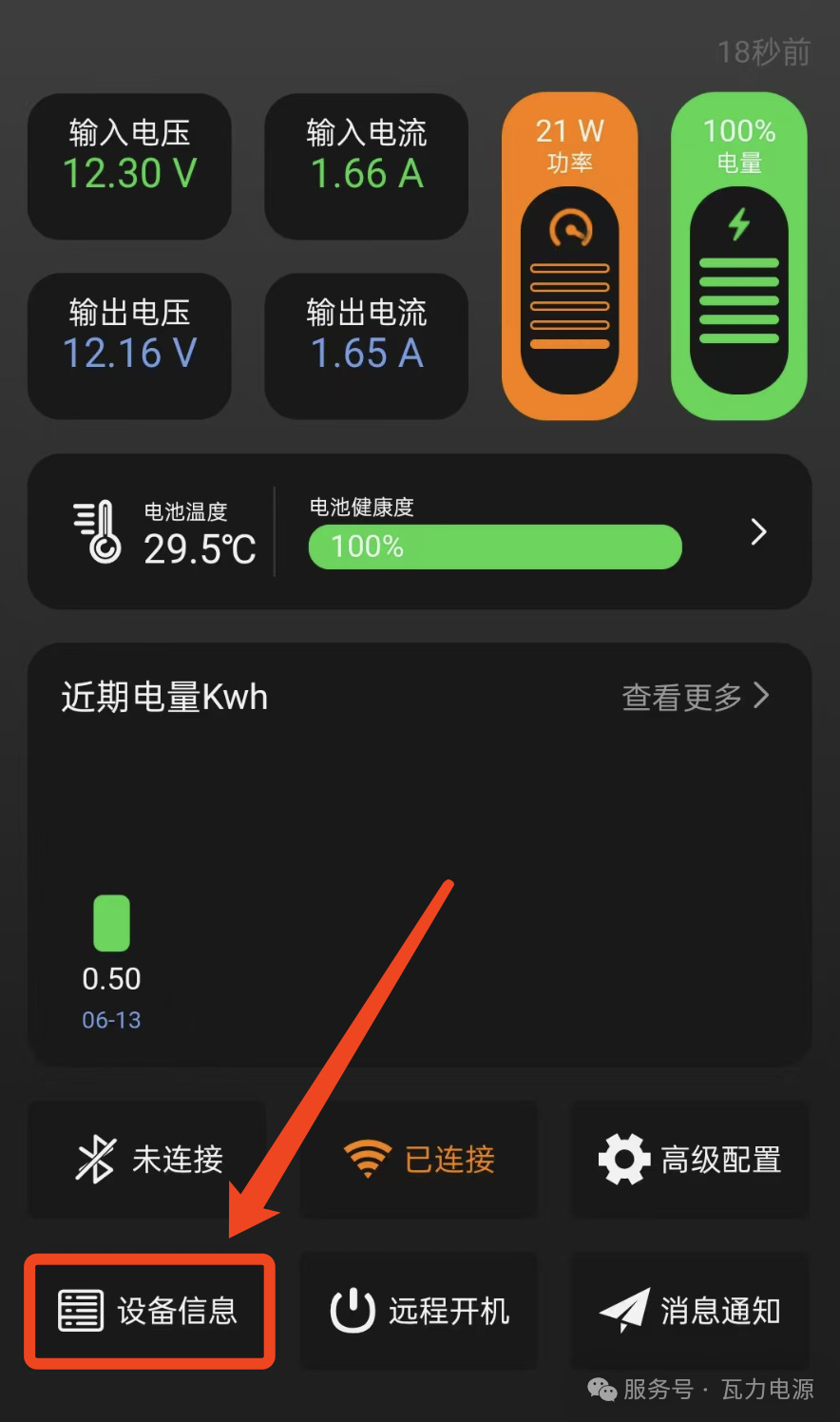
- Check for Updates: Click Check for Updates at the version number position. If a new version is found, click Upgrade Now.
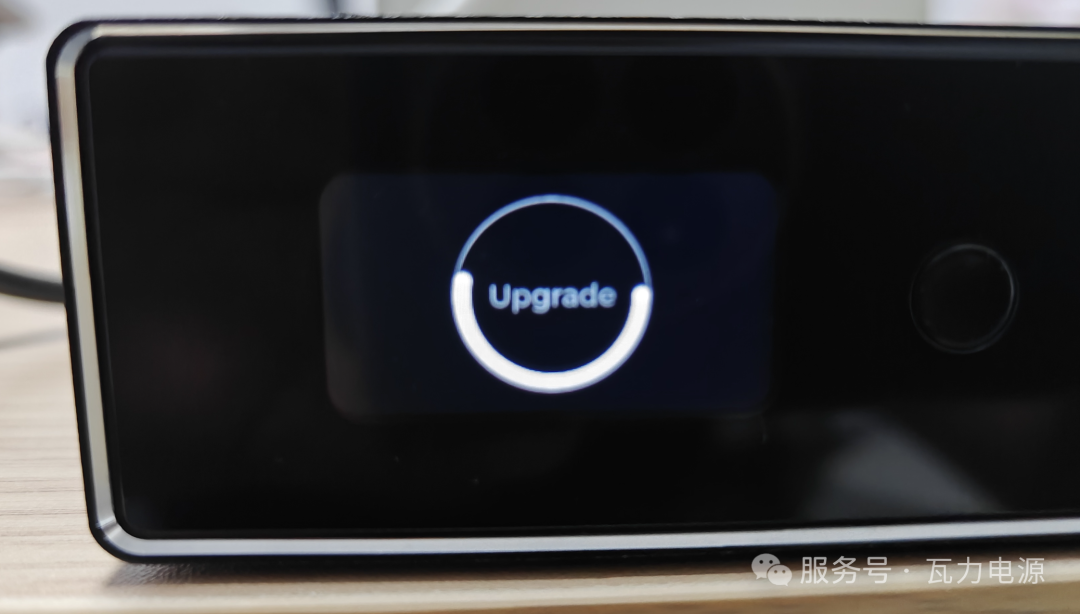
- Check Progress: At this time, the UPS screen will display the
Upgradetext and a progress bar, indicating that the upgrade has started.
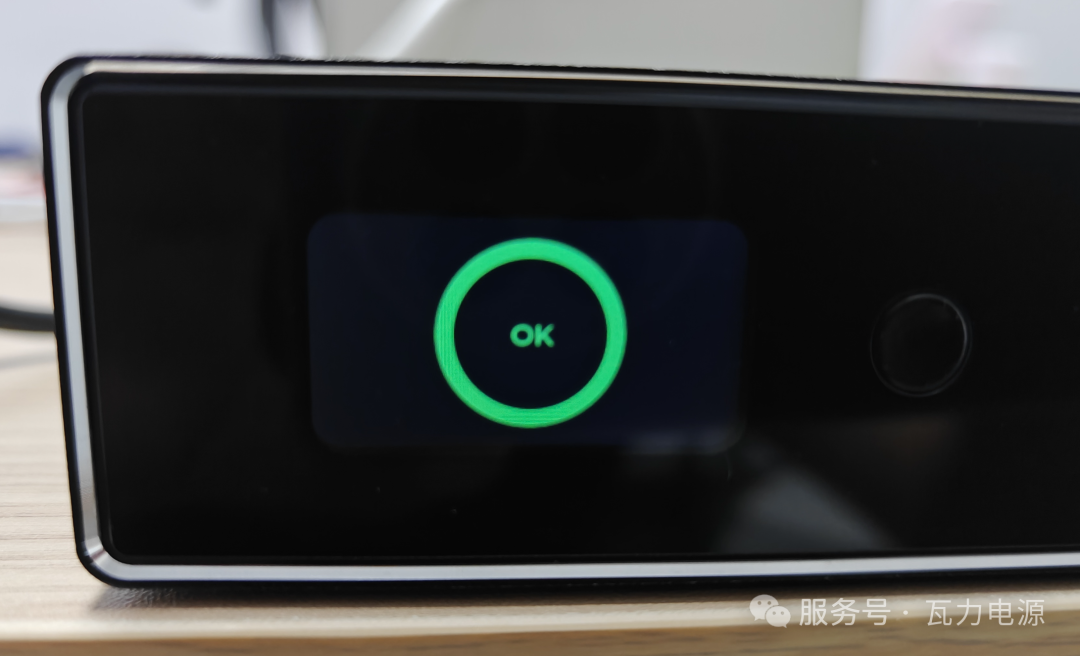
- Complete Restart: After the upgrade is complete, the screen will display
OKand automatically restart.
Upgrade Verification: After the restart is complete, please enter the app again to check the version number and confirm that the latest firmware has been successfully updated.